How to Save a TikTok Draft to Your Camera Roll?

Maxime Dupré
9/14/2026
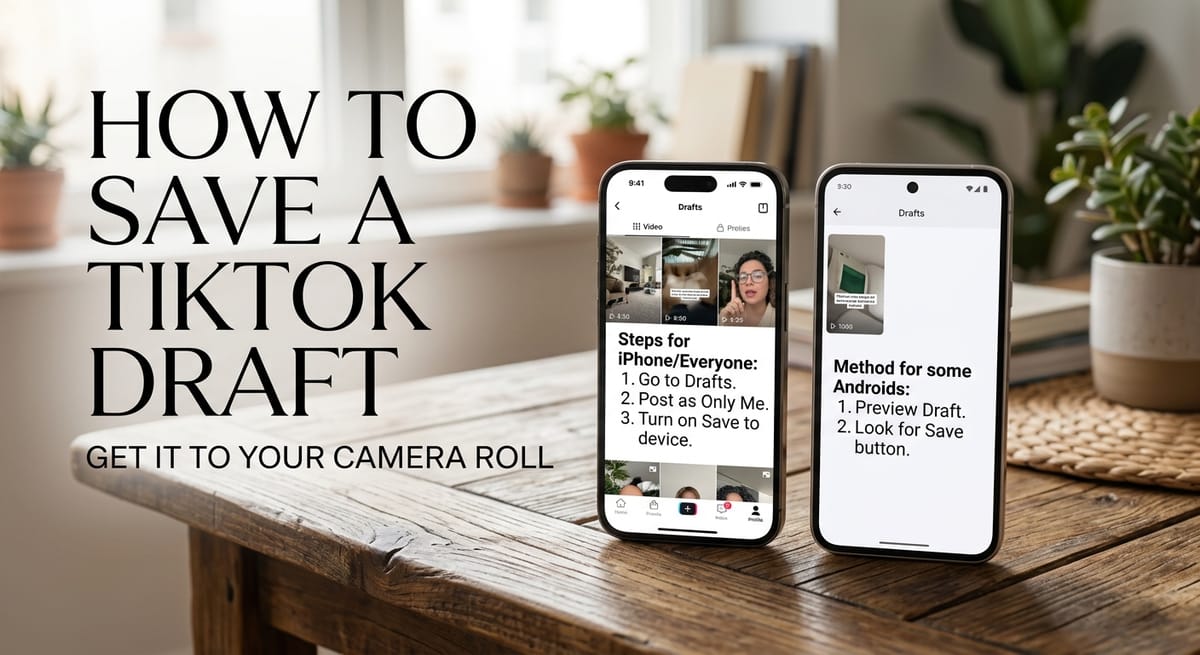
TikTok drafts stay locked inside the app. Delete TikTok, switch phones, or lose your login, and every unposted clip goes with it. Moving a draft to your camera roll fixes that, and it takes under a minute once you know where the settings sit.
There is no download button on the Drafts page for most people. The route runs through the posting screen, using a private audience and one toggle. Here is how it works on iPhone and Android.
Can you save a TikTok draft to camera roll without posting it publicly?
Yes. TikTok does not offer a direct export, but two methods get the file onto your phone. Some Android phones show a Save button on the draft preview. Everyone else posts the clip with the audience set to Only me and Save to device switched on.
The second method publishes the video, but nobody except you can see it. The saved copy keeps every sticker and effect from the editor.
How to save a TikTok draft to camera roll on Android
Open TikTok and tap Profile in the bottom bar. Tap Drafts to see your unposted clips, then pick the one you want.
When the preview plays, look at the top-right corner. If a Save button sits there, tap it. TikTok writes the file to local storage and it shows up in your gallery app.
The Save button does not appear on every Android phone. If your screen has no such option, skip to the next section. That method works on any phone.
How to save a TikTok draft to camera roll on iPhone (and Android without a Save button)
iPhone and iPad users have no shortcut. You finish the posting flow with the audience set to private.
Get a draft ready first
You need a clip in the Drafts folder. If it is empty, film something, add whatever effects you want, and tap Next. On the following screen, choose Drafts instead of Post. If the editor still feels new, our walkthrough on how to duet on TikTok covers the same tools from start to finish.
Step-by-step: post privately with Save to device on
| Step | What to do |
|---|---|
| 1 | Tap Profile at the bottom of the screen, then open Drafts. |
| 2 | Select the clip you want to keep. |
| 3 | Tap Next at the bottom of the editor. |
| 4 | On the posting screen, tap Who can watch this video and choose Only me. |
| 5 | Scroll down and open More options. |
| 6 | Make sure Save to device is on. Slide the toggle right if it is grey. Tap the X in the top-left corner to return. |
| 7 | Tap Post. |
After you tap Post, the video publishes to your account under the Only me audience. At the same moment, a copy lands in your gallery. Open Photos on iPhone, or your gallery app on Android, and the clip is there.
Why the Only me setting matters
Step 4 is the one people forget. Skip it and the clip goes out to every follower, plus the For You feed. Only me keeps the upload hidden from everyone but you.
The private post stays on your profile behind a lock icon. You can delete it later without touching the copy on your phone. If you want the whole account hidden rather than one video, our guide on how to make your TikTok account private explains what changes.
Check the Save to device toggle
Step 6 does the real work. When the toggle is on, TikTok writes a copy of every clip you post to your gallery. When it is off, nothing is kept locally and you get a private post with no file to show for it.
| Setting | Where it lives | Value to use |
|---|---|---|
| Who can watch this video | Posting screen | Only me |
| Save to device | Inside More options | On |
What happens after you save a TikTok draft to your phone
The clip behaves like any other video in your camera roll. Send it to a friend or drop it into another editing app. The file keeps its 9:16 frame, so it matches the standard TikTok dimensions if you upload it again later.
If you decide to post for real, upload from the gallery and add extras then. Many creators drop in an Ask or question sticker before the second upload to pull comments.
Once the public version is live, you can track how it performs. Our piece on reading TikTok analytics shows which numbers matter and which ones to ignore.
Why can’t I save my TikTok draft to camera roll?
Most failures come down to the toggle. Save to device sits inside More options, not on the main posting screen, so it is easy to miss. Confirm it shows green before you tap Post.
Storage permission is the next suspect. If TikTok cannot write to Photos, no file appears. On iPhone, go to Settings, find TikTok, and set Photos to Full Access. On Android, check the app’s permissions in Settings and allow storage or media access.
An outdated app can also hide the option. Update TikTok, restart it, and try again.
One more thing to know: the saved file carries a TikTok watermark on some app versions. If that bothers you, the TikTok story downloader on TTS Vibes strips it from a video link in seconds.
FAQs
Can you save a TikTok draft without posting it?
Not on iPhone. You must post the draft with the audience set to Only me and Save to device on. Some Android phones show a Save button on the draft preview that skips posting.
Do TikTok drafts disappear if I delete the app?
Yes. Drafts live on the device, not on TikTok’s servers. Uninstalling the app, switching phones, or clearing app data removes them. Saving a copy to your camera roll is the only way to keep them.
Why do people on Reddit say to post drafts as Only me?
Reddit threads recommend the Only me method because it works on every phone. The video publishes to your account but stays invisible to everyone else, while Save to device writes a copy to your gallery.
Does a saved TikTok draft have a watermark?
It depends on your app version. Clips saved through Save to device often include the TikTok logo and username. Reddit users report that some versions save without it, so check your gallery after posting.
Can I delete the private post after saving the draft?
Yes. Open the video from your profile, tap the three dots, and choose Delete. The copy already in your camera roll stays on your phone.