
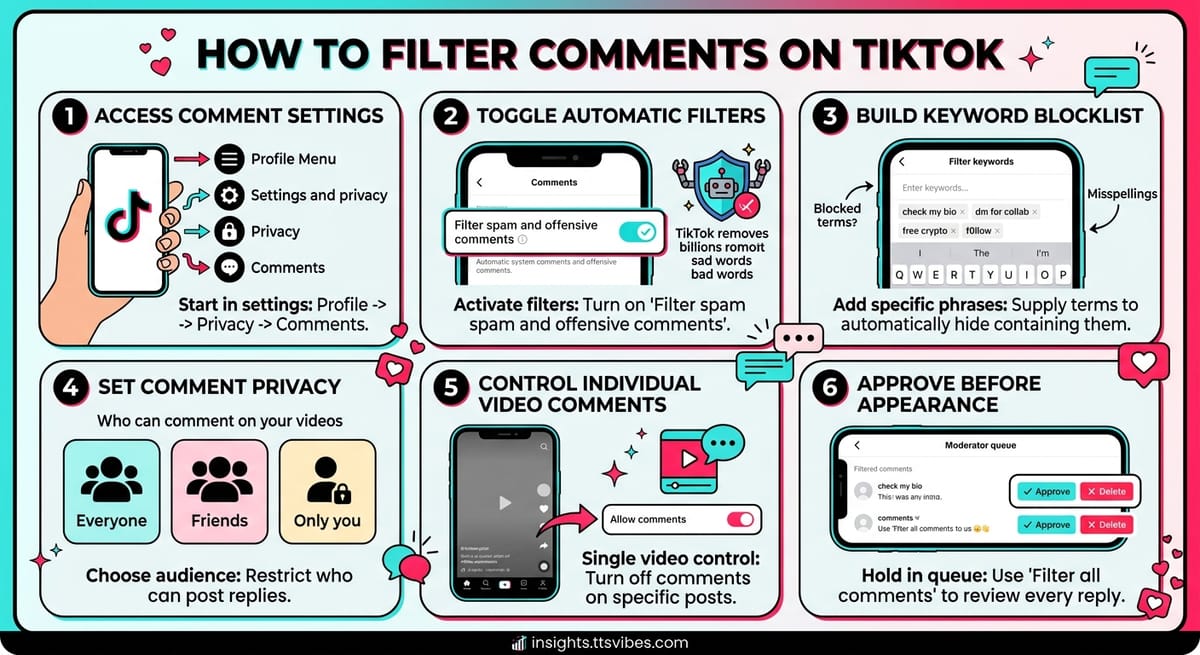
Spam links, insults and bot replies pile up fast once a video starts moving. TikTok ships several tools that hide that noise before your audience reads a word of it.
This guide covers the automatic spam filter, custom keyword lists, comment privacy settings, single-video controls and LIVE moderators. It also covers where each one runs out of road.
Why Filtering Comments on TikTok Is Worth the Setup
TikTok removed more than 1.3 billion comments between July and September 2024, according to its Community Guidelines Enforcement Report. Over the same three months the platform took down 147 million videos and banned 214 million accounts.
Those numbers cover the whole platform. Your own comment section still needs its own settings, because TikTok’s sitewide sweep catches policy violations, not the stuff that simply annoys you.
TikTok enforcement volumes, July–September 2024
| Enforcement action | Volume |
|---|---|
| Comments removed | 1.3 billion |
| Accounts banned | 214 million |
| Videos removed | 147 million |
| Livestreams closed | 12 million |
Source: TikTok Community Guidelines Enforcement Report, Q3 2024.
How to Filter Comments on TikTok in Your Settings
Every comment control lives on one screen. Find it once and the rest takes about two minutes.
Open Your Comment Settings
Tap Profile, then the three-line menu at the top right. Select Settings and privacy, then Privacy, then Comments under the Safety heading.
Switch On the Spam and Offensive Comment Filter
Toggle Filter spam and offensive comments. TikTok’s system then hides profanity, slurs, scam patterns and harassment across your videos, old and new.
Automation carries most of this load. TikTok reported that automated systems handled over 80% of removals in 2024, and its European transparency report for July to December 2025 put the figure at 93.8% of violating content actioned with no human review.
Share of violating content actioned by automation
| Period | Share |
|---|---|
| 2024 | Over 80% |
| Jul–Dec 2025 | 93.8% |
Source: TikTok Newsroom and TikTok’s sixth Digital Services Act transparency report.
How to Filter Comments on TikTok Using Blocked Keywords
Keyword filtering gives you the tightest grip. You supply the terms, and anything containing them disappears from public view.
Build Your Keyword List
On the Comments screen, tap Filter keywords and switch it on. Type your terms separated by commas or line breaks, then exit. Settings save on their own.
Common entries include check my bio, dm for collab, free crypto, cash app, and competitor names. Add anything specific to your niche that keeps showing up.
Cover Misspellings, Spacing and Emojis
Matching is exact, so scam becomes a separate entry from scammer. Spammers know this and write f0llow, cl!ck, or spaced-out letters to slip past.
Add those variants yourself. You can also paste in specific emojis to kill emoji-only spam.
Filtered comments are hidden, not deleted. Return to the Comments screen and tap Review filtered comments to release anything caught by mistake.
Comment Privacy Settings: Who Can Comment on Your TikTok Videos
Shrinking the audience that can post is the blunt instrument. Three options exist under Who can comment on your videos.
| Setting | Who it allows |
|---|---|
| Everyone | Any account on TikTok |
| Friends | Accounts you follow that follow you back |
| Only you | Nobody but your own account |
Turn Off Comments on a Single Video
Before posting, find the Allow comments toggle under your caption. For a published clip, tap the three dots, slide the grey icon row until Privacy settings appears, then switch comments off there.
Approve Comments Before They Appear
Filter all comments holds every reply in a queue until you clear it. Public figures and brands with strict guidelines lean on this, though it does slow the back-and-forth that pushes videos further.
How to Delete, Hide or Report a TikTok Comment
Press and hold a comment in the app to bring up delete, hide, pin and report. On desktop, hover over the comment and use the three dots above the heart icon.
Nobody gets a notification when their comment goes. They would only notice by returning to the video. If you would rather answer than remove, you can also reply with a photo instead of text, which turns a good question into a post of its own.
Filter Comments on TikTok LIVE With a Moderator
Filters do not cover live chat, which moves too fast to read while you are on camera. Hand that job to someone else.
- Tap the plus button and choose LIVE.
- Open Settings and find the moderators area.
- Tap the person icon in the top right corner.
- Pick a follower to moderate during the broadcast.
Your moderator can mute or report viewers in real time. Broadcasting unlocks at 1,000 followers, so this only applies once you have spent some time building an audience on TikTok. Our walkthrough on starting a TikTok broadcast covers the rest of the setup.
Gifting drives a lot of live chat activity, and knowing what a Galaxy actually costs to send helps you tell genuine supporters from bait accounts.
Where TikTok Comment Filters Stop Working
The keyword list caps out at 200 entries, which brands with several products burn through quickly. There is no wildcard matching, so every variant needs its own line.
Sophisticated bots use Unicode lookalikes and zero-width characters that sail straight past exact matching. And once a video passes ten thousand comments an hour, manual review stops being realistic.
If the settings screen looks different from what is described here, your app version is likely behind. Updating or reinstalling TikTok on iPhone usually restores the missing options. When harassment gets serious enough that no filter helps, closing the account down remains the last option.
FAQs
Do TikTok comment filters apply to old videos?
Yes. Enabling the spam filter or adding keywords applies retroactively across your full posting history. Existing comments containing blocked terms disappear from public view within minutes of you saving the settings.
How many keywords can I filter on TikTok?
TikTok allows roughly 200 keywords or phrases in your filter list. Separate each with a comma or line break. Brands needing broader coverage typically add only high-frequency spam terms and competitor names.
Can I see comments that were filtered out?
Yes. Go to Settings and privacy, then Privacy, then Comments, and tap Review filtered comments. Hidden comments sit there until you approve or ignore them. Only you can see that queue.
Does someone know when I delete their comment?
No. TikTok sends no notification for deleted or hidden comments. The person would only find out by revisiting your video and noticing their words are gone from the thread.
Can I turn off comments for my whole account?
Not globally. You can set Who can comment to Only you, which blocks everyone else across all videos, or switch comments off individually per video before or after posting.